Region-by-region control
Paint one or more areas and describe what each selected region should contain.

Directed edit
Paint a specific area and describe the furniture or detail you want added, replaced, or adjusted inside that region.
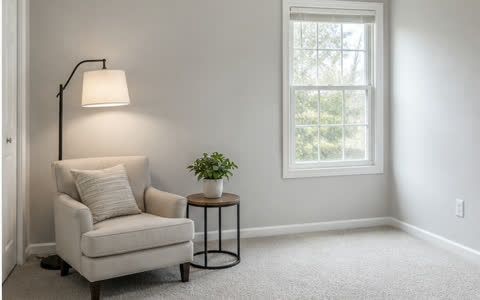 Before → After
Paint one or more areas and describe what each selected region should contain.
Direct a furniture or décor change without restaging the entire photograph.
Review the edited result beside its exact source image before download.
Workflow
Each step is designed around the listing photograph—not a generic image-generation canvas.
Upload the listing photo and enter the region-based editing workspace.
Mark a focused area and explain exactly what should be added or changed.
Check edges, textures, shadows, and preserved areas before delivery.
Available direction
Preservation brief
AI output can contain errors. Review every image before publishing or delivering it.
Questions
Describe the object, material, colour, and placement in plain language. Keep each painted region focused on one clear request.
Custom staging is for directed additions and replacements. Permanent finish changes belong in the planned virtual-renovation workflow.
Larger or overlapping masks give the model more freedom. Smaller, deliberate regions generally provide more controlled edits.
Explore another workflow
Start with the property
Create the property first, then choose this workflow for one photo or a complete property batch.