Paint the target
Use the precision canvas to mark only the object or area that should be removed.

Precision cleanup
Remove selected furniture, clutter, cords, and temporary distractions without asking an editor to rebuild the entire photograph.
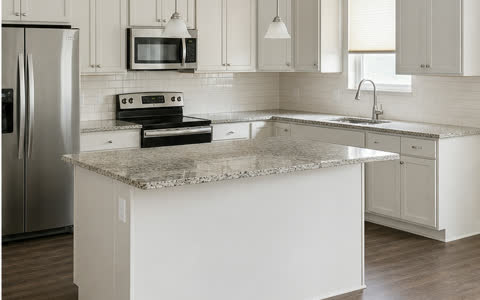 Before → After
Use the precision canvas to mark only the object or area that should be removed.
Add a short instruction when the cleanup needs more context.
Furnio rebuilds the hidden surface while attempting to preserve the surrounding room.
Workflow
Each step is designed around the listing photograph—not a generic image-generation canvas.
Open the original in the precision editing workspace.
Adjust the brush and cover the removable object without painting unrelated surfaces.
Compare the finished area with the original before using the image in a listing.
Available direction
Preservation brief
AI output can contain errors. Review every image before publishing or delivering it.
Questions
Use item removal for movable objects and temporary distractions. It should not be used to conceal defects or remove permanent property features.
No. A painted mask is enough for standard removal. A short prompt is available when the request needs clarification.
The hidden area is reconstructed by AI and must be reviewed. Keep masks tight and avoid covering large permanent structures.
Explore another workflow
Start with the property
Create the property first, then choose this workflow for one photo or a complete property batch.